 PlugOnce
PlugOnce guide
How to connect Nintendo Switch to Mac and transfer files
PlugOnce is a macOS app for transferring files between Mac and Nintendo Switch over USB. It uses DBI to browse storage, send packages and copy saves. Screenshots and videos can be imported through the Switch system USB mode without DBI.
Download PlugOnce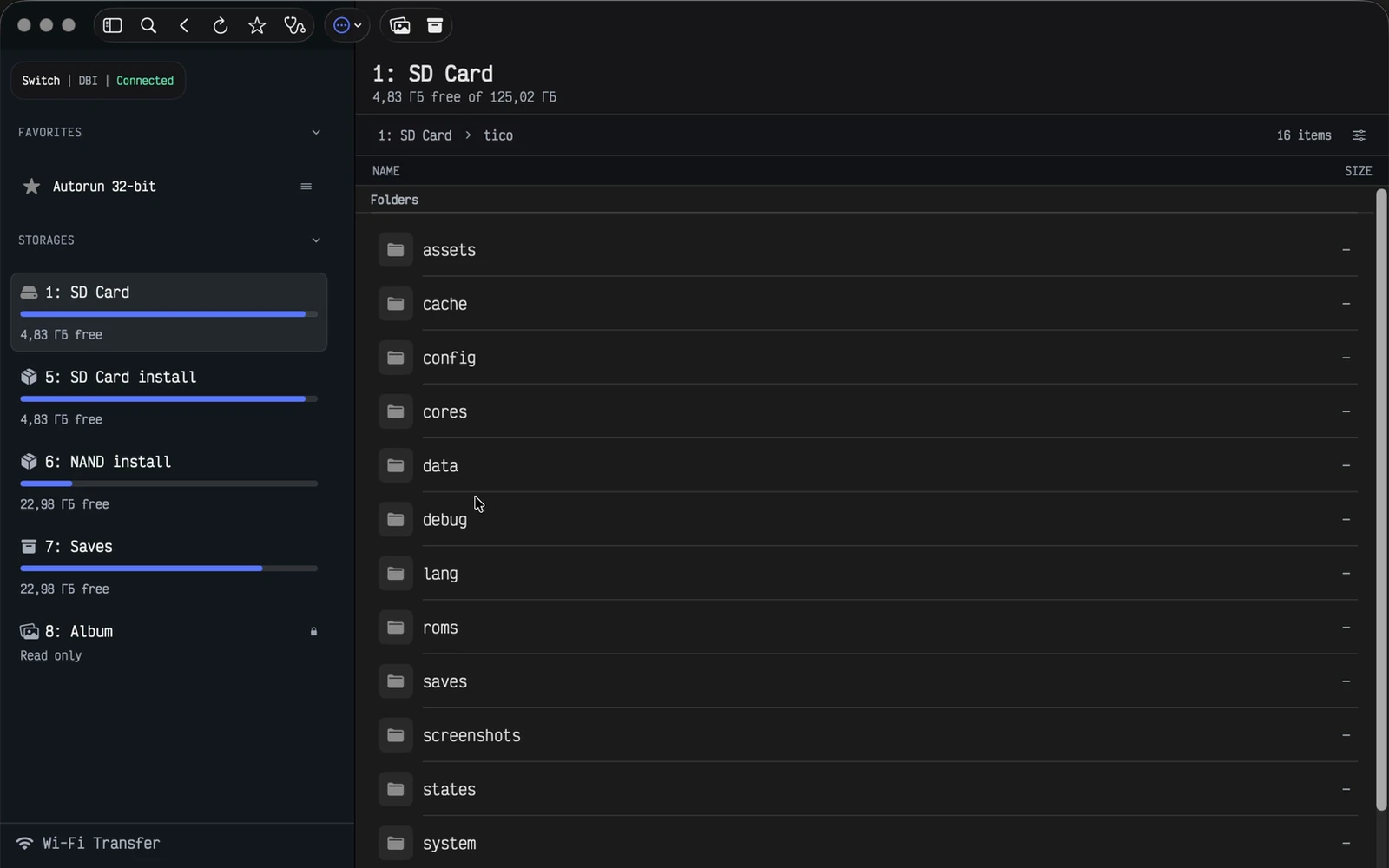
What you need
A Mac running macOS 12 or later, with Apple Silicon or an Intel processor, and a USB cable that supports data transfer. A charging-only cable will not work.
DBI workflows require a console that can already run DBI. PlugOnce does not install DBI or modify Switch firmware. A standard Switch without DBI supports the separate screenshot and video import workflow.
Current download: Beta 0.6.8 (46). This is a test build without Apple notarization. The home page provides the version details and download link.
Connect Switch using DBI MTP
The connection uses USB. MTP is the protocol through which DBI exposes the console’s storage to your Mac.
- Open PlugOnce on your Mac. On Switch, open DBI and select Run MTP responder.
- Connect Mac and Switch with a USB data cable. Keep DBI open.
- Wait for PlugOnce to detect the device and open an available storage. Check that you can see its folders and free space.
Copy files from Mac to Switch and back
Open the destination SD card folder in PlugOnce and drag files from your Mac into it. To copy in the other direction, select files on the device and copy them to your Mac. Favorites give you quick access to frequently used folders.
Before sending, check the storage, destination folder and free space. Wait for the operation to finish before unplugging the cable. After a disconnection, check the incomplete file and restart the transfer: resuming from the interrupted byte is not supported.
Queue NSP, NSZ, XCI and XCZ packages
Add your NSP, NSZ, XCI or XCZ packages to the PlugOnce queue, choose an available DBI destination and check free space before sending. PlugOnce shows transfer progress and the result of each operation.
A completed send to DBI describes the data transfer. Check installation results on the console itself. PlugOnce does not distribute games or provide game download links.
Import Switch screenshots and videos on Mac without DBI
The album workflow uses the Switch system feature Copy to a Computer via USB Connection. It imports screenshots and videos separately from the DBI workflow.
- On Switch, open System Settings → Data Management → Manage Screenshots and Videos → Copy to a Computer via USB Connection.
- Connect Switch to your Mac with a USB data cable and open the device album in PlugOnce.
- Choose a folder on your Mac and import new screenshots and videos. Wait for copying to finish.
Back up saves available through DBI
PlugOnce copies saves exposed by DBI into a dated folder on your Mac. Open that folder and inspect the files after copying.
This is a local file copy of the available data. Having a backup does not itself confirm that the saves can be restored on the console.
If your Mac cannot see Switch
Device Doctor checks the connection stages: USB, MTP startup, storage and folder access. Start with the stage it reports instead of changing everything at once.
- Check your USB data cable and connect directly to the Mac. Try another port if needed.
- Keep DBI on Run MTP responder, or enable the system album copy mode, depending on your task.
- Close other apps that may be using this MTP connection, then reconnect in PlugOnce.
- If the problem remains, copy the Device Doctor diagnostics and include your PlugOnce version, macOS version and failing stage in a forum post. Review the report before publishing it.
App language and appearance
PlugOnce supports Russian, English, Spanish and Brazilian Portuguese. Open Settings → General → Language and select a language, or use System Language to follow macOS.
In Settings → Appearance, choose Light, Dark or System. The system theme follows your macOS appearance. You can also adjust text size here.
AI agents and Raycast
Agent Access lets a local agent check the device, search files, read favorites and prepare transfers. You choose allowed actions, Switch folders and Mac source folders in PlugOnce. Writes require in-app confirmation by default; autonomous transfers of new files and replacements have separate permissions.
The Raycast extension uses the same access for favorites, search and sending files from Finder. Installation currently requires a local copy of the extension; a public archive is not available. Keep PlugOnce open, as it performs the actual transfers.
License and payment
Start a purchase in PlugOnce: Settings → License → Go to Payment. The app creates an order and opens a Lava.top payment page. After paying, return to PlugOnce and select Check Payment.
Check current pricing and terms before paying. A purchase made directly from the Lava.top product listing is not linked to an app order. If your installed version has no License section, wait for an update before paying.
Where your files go
Files move locally between Mac and Switch over USB. This website does not receive them. When you use Wi-Fi sharing, it exposes your selected folder on the local network.
The website has no analytics trackers. Your browser remembers the language and theme. Update checks and payment use online services, separately from file transfers.