Progress in your Dock
See transfer speed and estimated queue time on the PlugOnce icon, even when the window is minimized.
Move files between your Mac and Nintendo Switch over USB with DBI. Send packages, import captures, and keep save backups on your Mac.
Beta 0.6.8 (46) · Test build, not notarized by Apple
8a6764bd93c74206d4cd8f693c2069b7bc83a5cbb9e3969541dd493d28835104File detailsSelect Run MTP responder on the console and connect a data-capable USB cable. PlugOnce finds the device and shows its available storage.
See transfer speed and estimated queue time on the PlugOnce icon, even when the window is minimized.
Russian, English, Spanish and Brazilian Portuguese. Choose your app language and a light or dark theme, or follow your macOS settings.
Search across the device. Pin deeply nested folders to the sidebar and return with a single click.
Find ._ and .DS_Store files on your SD card. Review their paths, count, and total size before deleting.
Open a selected Mac folder in a phone or computer browser on the same local network. No cloud required.
Let a local agent prepare a transfer. PlugOnce shows the files and destination and asks for your approval before writing.
Open search and Quick Look, download selected files, and create folders from the keyboard. Find the shortcuts right in PlugOnce.
Device Doctor checks USB, MTP, storage, and folder access. Copy the results when you need help with a connection.
PlugOnce lets an AI agent work with your connected Switch by running commands on your Mac. The agent can check storage and free space, list and find files, read your favorite folders, and check transfer progress. PlugOnce handles the actual transfer, so keep the app open.
For example, ask: “Find main.elf in /switch,” “Prepare to send this Mac folder to my favorite folder on Switch,” or “Show the progress of the last transfer.” The agent needs to be able to run local commands and read the guide below.
Before a write, PlugOnce prepares a plan showing the files, destination, required space and existing names. Transfers require your confirmation in the app by default. Reading and sending files have separate permissions.
Version 0.6.7 (45) has separate permissions for autonomous transfers of new files and replacement of existing files. Both are off by default. The agent still stays within the folders and actions you allow in Agent Access.
AI agent guide (.md, in Russian)Raycast is a launcher for quick commands on your Mac. The PlugOnce extension opens favorite device folders, sends files selected in Finder, browses storage and searches your Switch. You can create a Quicklink for a favorite folder and assign it a hotkey in Raycast.
Open Favorites shows the favorites you added in PlugOnce. Send Files to Switch accepts files and folders from Finder or a file picker. Browse and Search Device finds files, while Transfer Operations shows progress, speed and time remaining and lets you cancel your transfer. Device Status shows the connection, storage capacity and free space.
If your Raycast supports AI tools, you can request these actions in plain language, such as “Open my favorite folder” or “Prepare to send the selected files to Switch.” Regular commands work without Raycast AI.
The extension uses Agent Access permissions and the PlugOnce transfer queue. It does not grant itself new permissions. PlugOnce performs the transfers, so its commands are unavailable when the app is closed.
Raycast setup guide (.md, in Russian)The app version is 0.6.8; the build number is 46. Beta means a version for testing. Include both numbers when reporting a problem on the forum.
Notarization is Apple's automated check for known malicious software. This build is not notarized, so macOS may block it when you first open it and say that it cannot verify the app. Apple's guide explains this alert.
About macOS opening alerts.md is a text guide in Markdown format. You can read it in your browser, save it or give it to an AI agent.
Replies to the PlugOnce demo on Reddit and X: what people want to try and where file transfers on Mac get in their way.
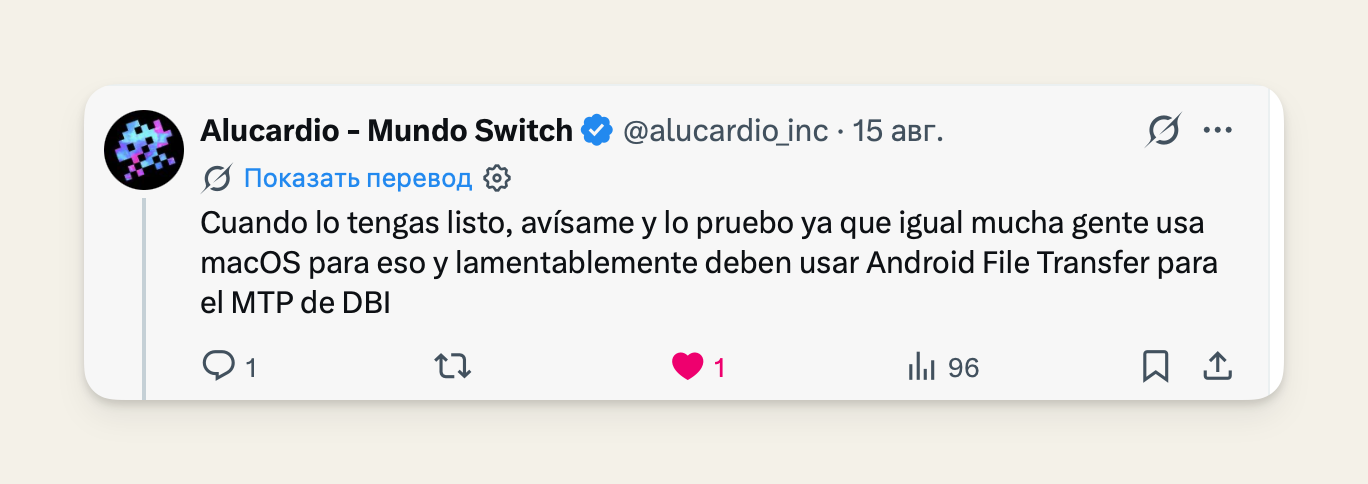
Let me know when it’s ready and I’ll try it. Many people use macOS for this and unfortunately have to use Android File Transfer for DBI’s MTP.Translated from Spanish
 Open screenshot
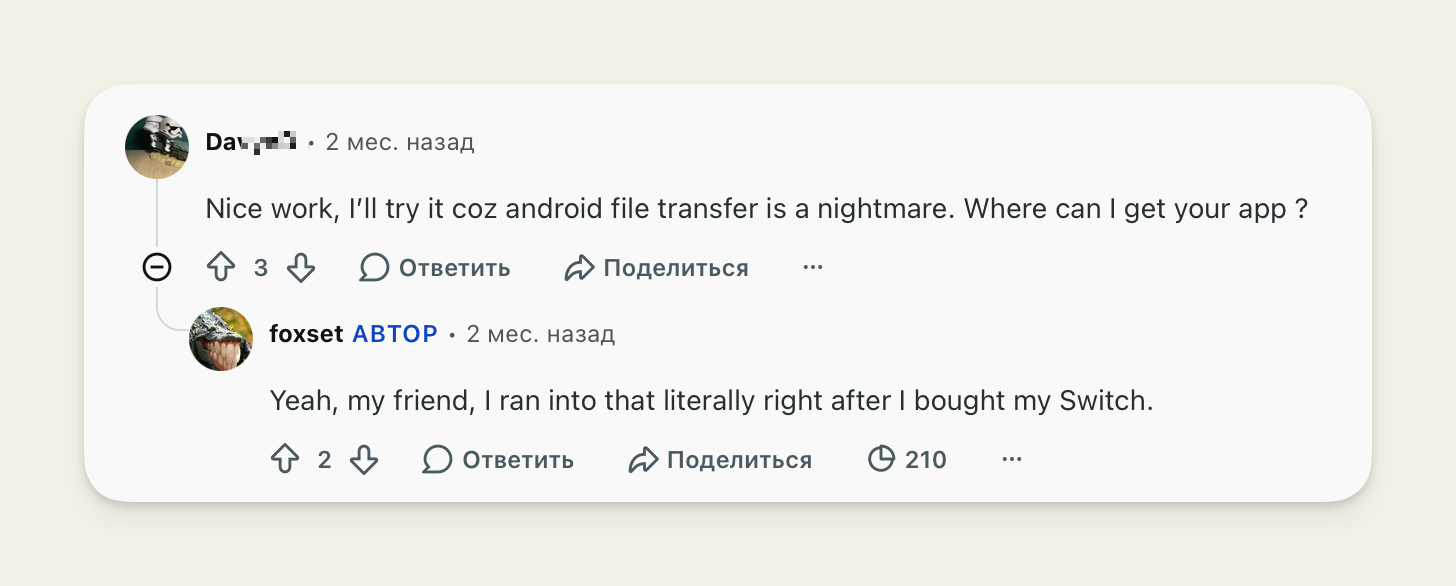
Nice work, I’ll try it coz android file transfer is a nightmare. Where can I get your app ?Original comment
 Open screenshot
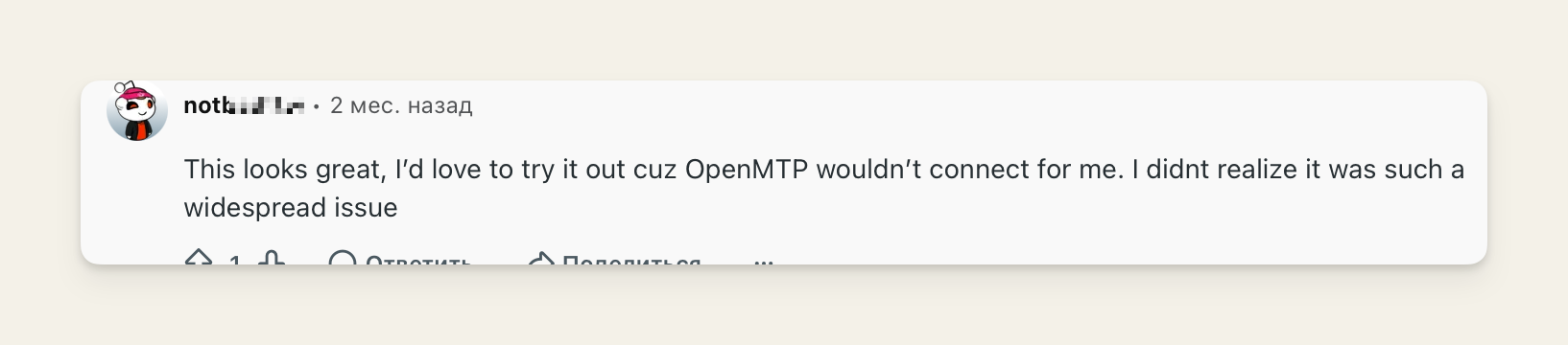
This looks great, I’d love to try it out cuz OpenMTP wouldn’t connect for me. I didnt realize it was such a widespread issueOriginal comment
 Open screenshot
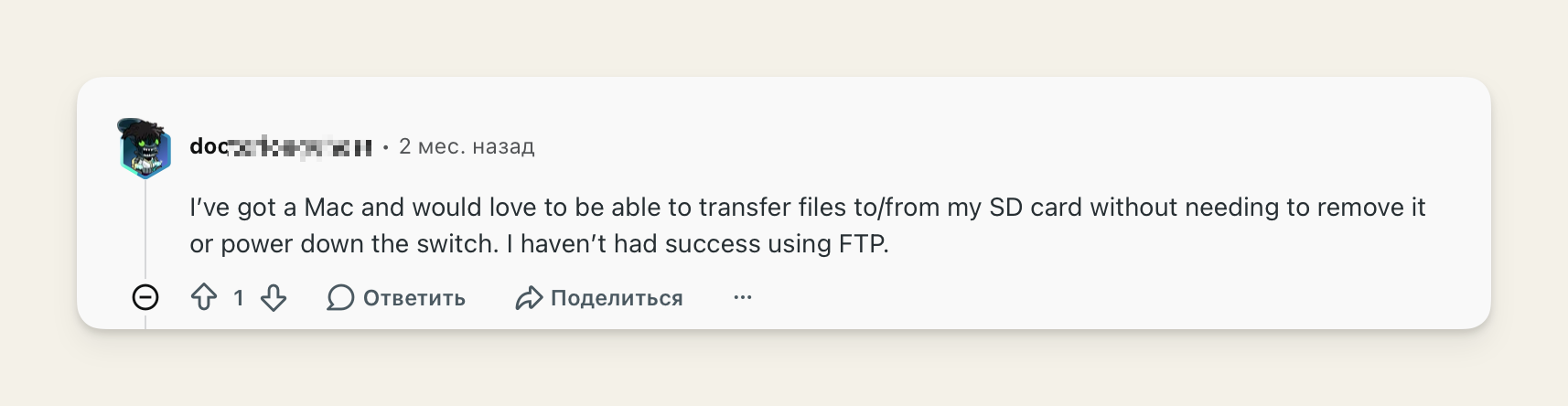
I’ve got a Mac and would love to be able to transfer files to/from my SD card without needing to remove it or power down the switch. I haven’t had success using FTP.Original comment
 Open screenshot
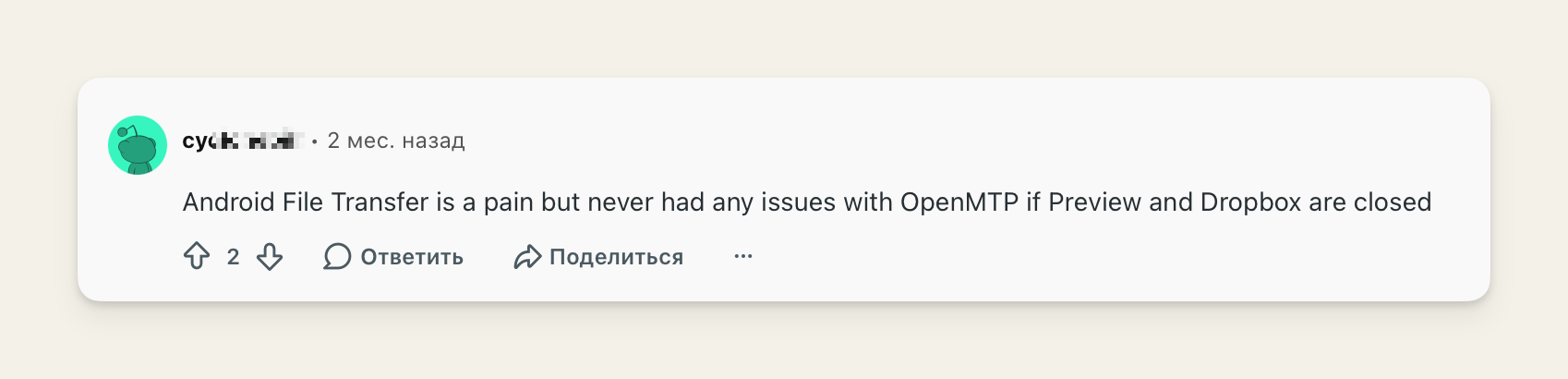
Android File Transfer is a pain but never had any issues with OpenMTP if Preview and Dropbox are closedOriginal comment
 Open screenshot
These are reactions to a demo and experiences with other tools. The comments do not describe hands-on use of PlugOnce.
Share your experience on the forumA device that never appears. A dropped connection. An incomplete copy. These are problems people report on forums — and the workflows PlugOnce provides for Switch.
Select a problem to see how PlugOnce helps. Screenshots and original discussions open separately.
 How PlugOnce helps
PlugOnce is built for Switch with DBI. Device Doctor shows whether the connection stopped at USB, MTP, storage, or a folder. Retry the connection or copy the diagnostic report.
Explore the featuresPlugOnce is built for Switch with DBI. Device Doctor shows whether the connection stopped at USB, MTP, storage, or a folder. Retry the connection or copy the diagnostic report.
If the macOS camera helper holds the USB interface, PlugOnce offers a recovery action for you to approve. The Switch workflow does not require Android File Transfer or OpenMTP.
For Switch file transfers, PlugOnce checks the resulting file size and reports a mismatch. Package transfers have a separate “Sent to DBI” status.
The PlugOnce queue separates completed, failed, and interrupted transfers. Inspect the destination, then retry the files you need from the beginning.
More Switch reports: USB conflict, later resolvedSwitch OLED and AFT on an M2 MacBook
These are independent reports about other tools, not reviews of PlugOnce. Android reports illustrate MTP issues on Mac; the PlugOnce workflows here are for Switch.
Compare PlugOnce, Android File Transfer, and OpenMTPStart in PlugOnce on the Mac you want to use it on. The app creates your order, then opens payment in your browser.
Launch PlugOnce and open Settings → License. You’ll see your license status and purchase options here.
In the PlugOnce Lifetime card, enter your email address, choose a currency, and check the displayed price.
PlugOnce creates your order and opens its Lava.top invoice in your browser. Complete payment on that page.
In the same License section, choose Check Payment. After the payment is confirmed, the app activates the license on this Mac.
Do not pay directly from the Lava.top product page: that purchase will not be linked to an order in the app. If your installed version has no License section, wait for an update before paying.